
NexusEase
HTML Cleaner & Text-to-HTML ConverterFree HTML Cleaner Online: Clean Messy HTML & Convert Text to HTML
By the NexusEase Tools Team · Last updated August 2026 · 10 min read
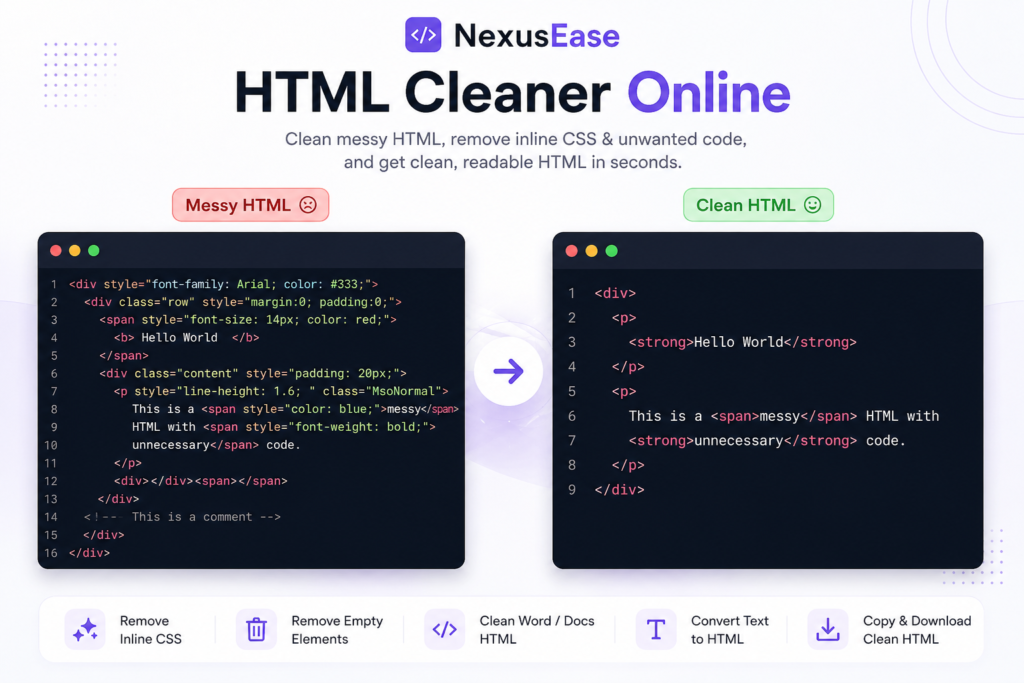
Messy HTML usually does not start messy. It becomes messy after content moves between Microsoft Word, Google Docs, a CMS, an email editor, a page builder, or an old website. A simple paragraph can pick up inline CSS, empty spans, unnecessary classes, copied attributes, comments, repeated spaces, and tags you never intended to keep.
NexusEase HTML Cleaner gives you a quick way to clean that markup in your browser. Paste HTML or plain text, choose the cleanup options you need, and generate a cleaner version you can review, copy, preview, or download. The same tool can also strip HTML from text or turn plain text into HTML paragraph tags, so you do not need a separate utility for every small cleanup job.
Quick answer: an HTML cleaner removes unwanted markup and formatting while keeping the content and structure you choose to preserve. It is useful for Word-to-web publishing, CMS migrations, email content, old HTML snippets, copied rich text, and plain-text-to-HTML conversion.
What Does an HTML Cleaner Do?
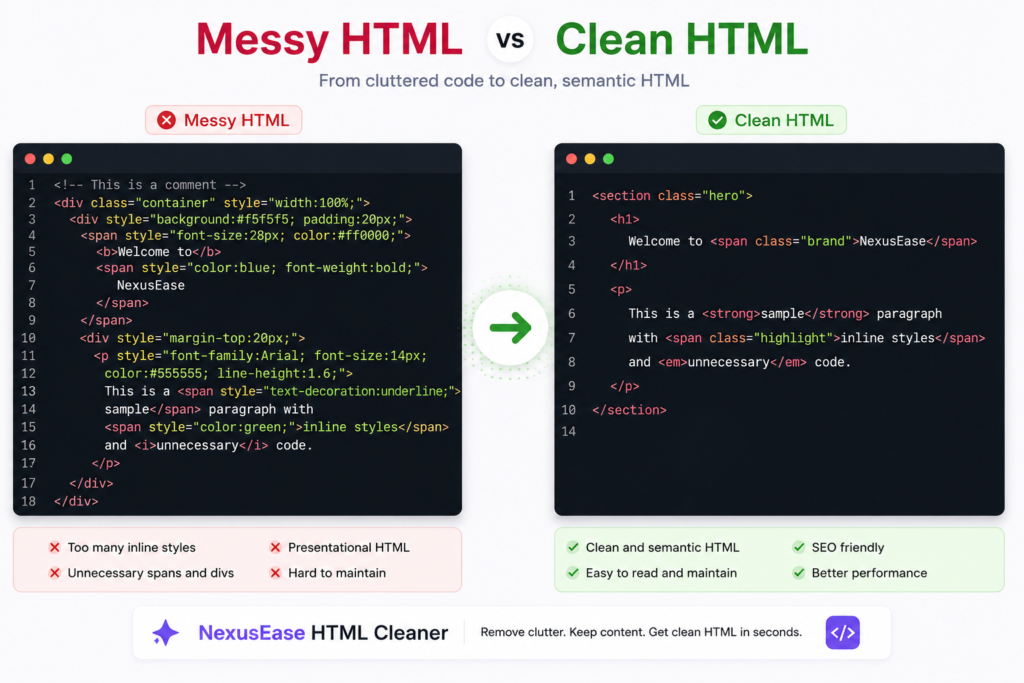
An HTML cleaner takes existing markup and removes or rewrites the parts that create clutter. Depending on the settings, that can mean removing inline styles, empty elements, classes and IDs, HTML comments, unnecessary span tags, links while keeping their text, or all HTML tags when you only want plain text.
Cleaning is different from beautifying. A beautifier mainly changes indentation and line breaks so code is easier to read. A cleaner changes the markup itself. Minifying is different again: it makes code more compact by removing unnecessary whitespace. If your problem is copied formatting or unwanted tags, cleaning is the job you want.
Clean Messy HTML Code Online Without Rebuilding the Page
When a page contains useful headings, paragraphs, lists, emphasis, links, or code blocks, deleting everything and starting again is wasteful. A better workflow is selective cleanup: remove the noise and keep the semantic structure that still has value.
For example, a paragraph copied from a rich-text editor may contain a style attribute on the paragraph, several nested spans, a class name, and an empty element. The visible sentence is fine; the wrapper code is the problem. With selective options, you can remove the styling and empty markup while leaving the paragraph and its meaningful text intact.
This is especially useful before pasting content into WordPress, a custom CMS, a landing-page builder, documentation, a newsletter template, or a client website. Cleaner markup is easier to inspect later because there is less inherited formatting to fight.
How to Use the NexusEase HTML Cleaner
1. Paste your messy HTML or plain text into the input panel.
2. Choose the cleanup options that match your goal. You can remove inline styles, strip all tags, create automatic paragraphs, remove empty elements, normalize spacing, remove classes and IDs, clean Word or Docs markup, remove span tags, or remove links while keeping their text.
3. Select Clean & Convert. Review the cleaned code and use Live Preview when you want to see the rendered result.
4. Copy the result or download it. If you strip all tags without converting the result back into paragraphs, the output is plain text; otherwise, you can keep an HTML result.
Tip: do not turn on every option automatically. If you need links, classes, IDs, or a particular structure for your site, keep those parts. Cleaning should remove what you do not need, not erase useful semantics.
Remove Inline CSS from HTML Online
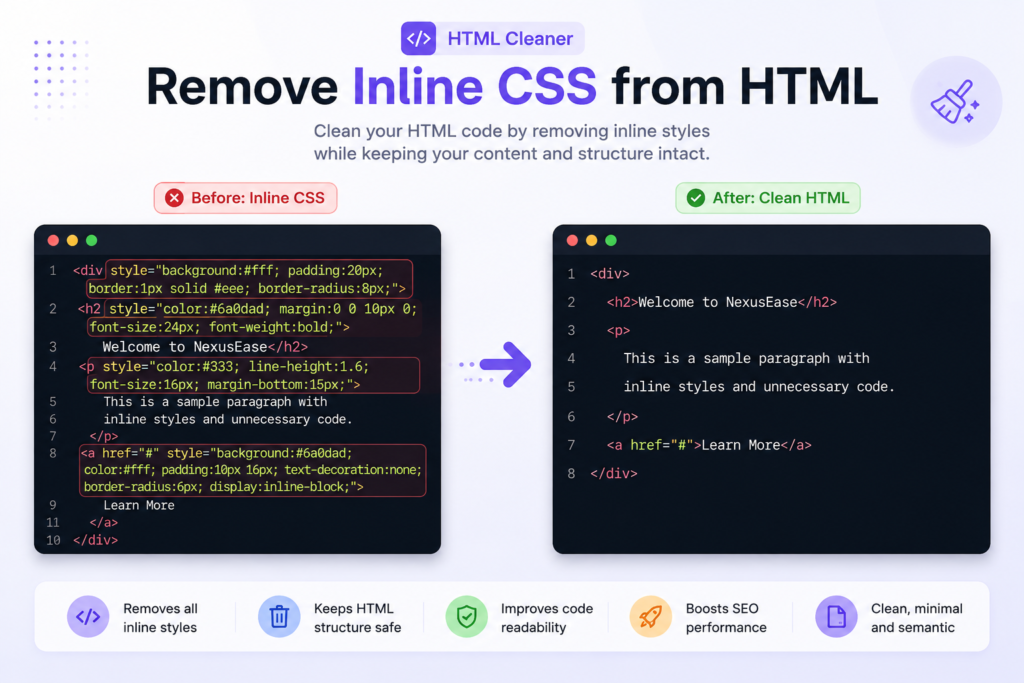
Inline CSS is styling written directly inside an element, such as style="color:red". It is convenient for one-off markup, but copied content can contain dozens or hundreds of inline declarations that make future editing painful.
Use Remove Inline Styles when you want to keep the HTML elements but discard their style attributes. This is a practical choice when moving content into a site where the theme or stylesheet should control typography, spacing, and colors.
Removing inline CSS does not automatically mean every stylesheet-related issue is solved. Classes, IDs, style blocks, and external stylesheets are separate pieces of markup. If your goal is a very neutral content fragment, combine inline-style cleanup with class/ID cleanup and review the result before publishing.
Clean HTML Copied from Word or Google Docs
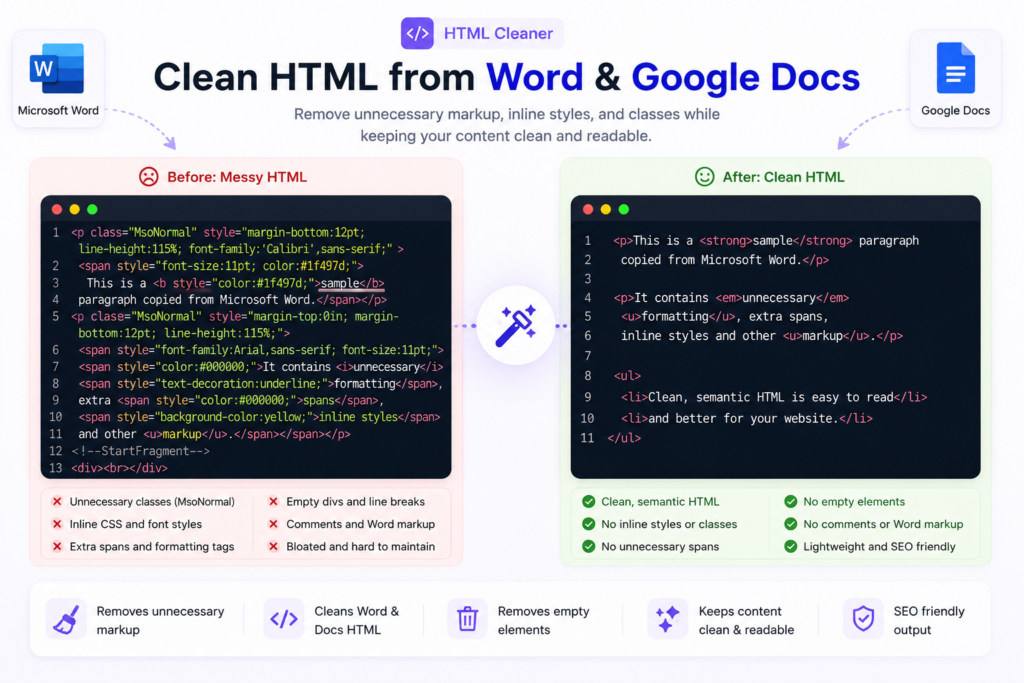
Word processors and rich-text editors are built for document editing, not for producing the smallest possible web markup. Copying content between applications can bring along editor-specific classes, data attributes, inline formatting, empty spans, non-breaking spaces, and other clipboard baggage.
For this job, start with Clean Word / Docs Markup, Remove Inline Styles, and Remove Empty Elements. If the destination website already controls its own styling, Remove Classes & IDs can make the output even cleaner. Keep headings, lists, strong emphasis, and links when they are part of the content rather than accidental formatting.
This is safer than blindly stripping every tag because a Word document may contain real structure you want to preserve: headings, ordered steps, bullet lists, bold terms, and hyperlinks.
Convert Plain Text to HTML Paragraph Tags Online
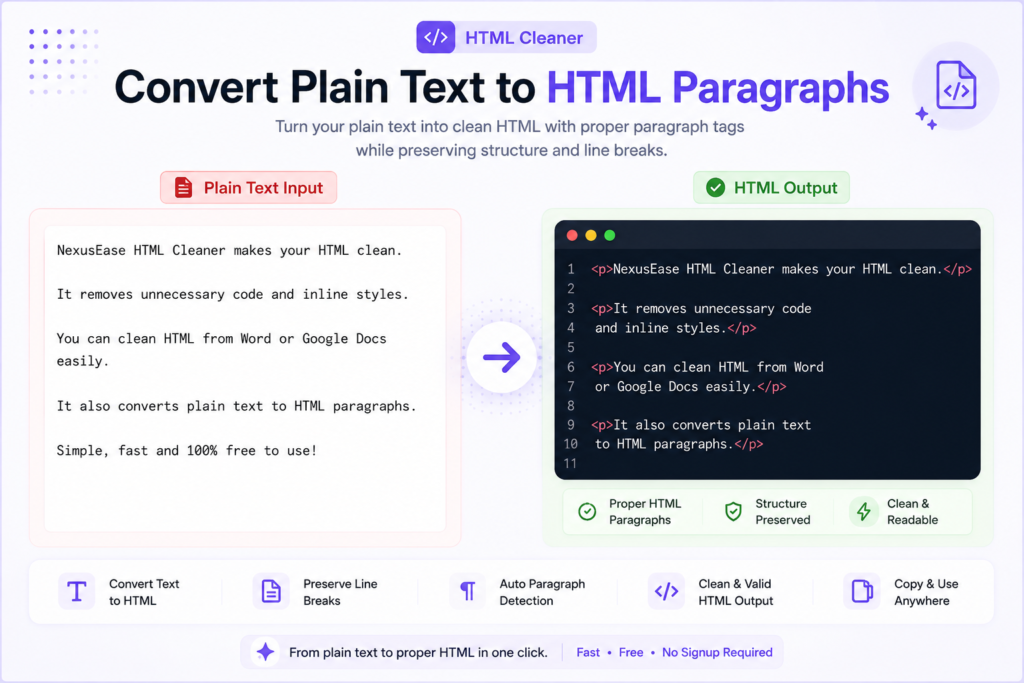
Sometimes there is no HTML to clean. You have a note, article draft, email, or text file and need simple web-ready markup. Auto Paragraphs converts text blocks into paragraph elements and can preserve line breaks inside a paragraph.
For example, two blocks of plain text separated by a blank line can become two <p> elements. This is useful when preparing copy for a CMS that expects HTML, converting a plain-text draft for a web page, or turning manually written notes into a cleaner publishing format.
Special characters such as ampersands and angle brackets need to be encoded correctly when they are text rather than markup. A browser-based parser helps distinguish real HTML structure from characters that should appear literally in the output.
Remove HTML Tags from Text and Keep the Readable Content
If you only need the words, enable Strip All HTML Tags. This turns markup into readable text instead of returning HTML elements. It is useful for extracting copy from an HTML snippet, preparing text for a spreadsheet or text-analysis workflow, cleaning an email export, or removing formatting before reusing content elsewhere.
Paragraph and line-break handling matters here. A weak HTML stripper can collapse an entire page into one wall of text. The goal should be to remove markup without unnecessarily destroying the reading order and useful breaks between content blocks.
HTML Cleaning vs Sanitizing: They Are Not the Same Thing
Cleaning and security sanitization overlap, but they are not identical. A content cleaner is mainly about removing unwanted markup and formatting. A security sanitizer is specifically designed to prevent unsafe HTML from becoming executable when untrusted content is inserted into a web page.
NexusEase removes active content such as scripts from cleaned output and blocks common dangerous event-handler and URL patterns. That makes the cleaner more cautious with pasted markup, but you should not treat a general-purpose cleanup tool as a replacement for a dedicated, audited sanitizer in a security-sensitive application.
If your website accepts untrusted HTML from users and later injects it into a live page, use a security-focused sanitizer and a strong Content Security Policy. For production applications, allow-list-based sanitization is preferable to trying to identify every dangerous string manually.
Useful Cleanup Options and When to Use Them
Remove Inline Styles: useful when the destination site should control styling through its own CSS.
Remove Classes & IDs: useful for copied content that carries selectors from another website or editor. Do not use it if your layout or JavaScript depends on those selectors.
Remove Comments: useful for removing editor notes, template comments, and leftover development annotations from a content fragment.
Clean Word / Docs Markup: useful for clipboard content containing Office- or editor-specific attributes and wrappers.
Remove Span Tags: useful when spans add no semantic value. The text inside the span should remain.
Remove Links (Keep Text): useful when you want the anchor text but not the hyperlink.
Remove Empty Elements: useful for blank spans, divs, and paragraphs created by editors. Elements that are meaningful even without text, such as media or line-break elements, need different treatment.
Normalize Spacing: useful for ordinary text nodes with repeated spaces and blank lines. Whitespace inside code and preformatted blocks should be preserved.
Strip All HTML Tags: use when your final result should be plain text rather than cleaned HTML.
Real-World Examples
CMS publishing: clean a draft copied from Word before placing it in WordPress or another CMS, while keeping headings, paragraphs, lists, and emphasis.
Email content: remove layout and formatting clutter from an HTML email when you only need the readable message or a simpler content fragment.
Content migration: clean old HTML before moving articles between website builders or CMS platforms, reducing legacy classes and inline styles that no longer belong to the new design.
Developer handoff: remove irrelevant formatting from a snippet before reviewing the actual semantic structure.
AI and text-processing preparation: when a workflow needs only the article text, stripping irrelevant markup can reduce noise. Keep any structure that carries meaning for the downstream task instead of deleting it by default.
Common HTML Cleaning Mistakes
Stripping every tag when you only needed to remove styles. This destroys headings, lists, emphasis, and links that may still be useful.
Removing classes and IDs without checking dependencies. A class may be visual styling, but it can also be used by JavaScript, testing, analytics, or accessibility-related behavior.
Treating cleaned HTML as automatically safe HTML. If content comes from untrusted users, security sanitization deserves its own audited layer.
Normalizing whitespace inside <pre> or <code>. In preformatted content, spacing can be part of the information.
Publishing without previewing. Always inspect the cleaned result when the source contains nested elements, tables, media, or unusual copied markup.
Why Browser-Based Cleaning Is Useful for Private Snippets
For a client-side tool, the main advantage is that routine processing can happen in the browser instead of requiring you to upload a snippet to a remote conversion service. This is useful for drafts and everyday code cleanup.
That does not make every browser tool automatically private. Privacy claims should match the actual implementation, including analytics, third-party scripts, logging, and any future server-side features. NexusEase should keep its privacy wording specific to the cleaner's processing behavior rather than making broader promises the page cannot verify.
Frequently Asked Questions
What is the best way to clean messy HTML code online? Paste the markup into a cleaner, choose only the transformations you need, review the result, and preview it before publishing. For copied Word or Docs content, inline styles, editor-specific markup, empty elements, and unnecessary classes are common cleanup targets.
Can I remove inline CSS without removing HTML tags? Yes. Inline CSS is stored in style attributes, so it can be removed while keeping elements such as paragraphs, headings, lists, links, strong, and emphasis tags.
How do I convert plain text to HTML paragraphs? Use an auto-paragraph option that treats blank lines as paragraph boundaries and converts the resulting blocks into <p> elements. Single line breaks can be preserved as <br> when needed.
How do I remove HTML tags but keep the text? Use Strip All HTML Tags. A good conversion should preserve readable separation between block elements rather than merging the entire document into one line.
Can I clean HTML copied from Microsoft Word? Yes. Word and other rich-text editors can add editor-specific formatting. Remove Word/Docs markup, inline styles, empty elements, and—when safe for your destination—unnecessary classes and IDs.
Does an HTML cleaner fix invalid HTML? A browser parser can normalize some malformed markup while parsing it, but a cleaner is not a full HTML validator. If standards compliance matters, validate the final document separately.
Is an HTML cleaner the same as an HTML sanitizer? No. A cleaner focuses on unwanted markup and formatting. A sanitizer is security-focused and should be designed to prevent unsafe HTML from executing.
Will cleaning HTML improve SEO? Cleaner markup can make maintenance and publishing easier, but removing a few extra tags is not a direct shortcut to higher rankings. Search performance depends much more on useful content, crawlability, page experience, internal linking, and whether the page satisfies the searcher's intent.
Is the NexusEase HTML Cleaner free? The tool is designed as a free browser-based utility with no installation required.
Can I use the cleaner on mobile? The interface is responsive, so normal cleaning tasks can be performed in a modern mobile browser as well as on desktop.
Final Takeaway
Use an HTML cleaner when the content is right but the markup around it is not. The safest workflow is selective: preserve meaningful structure, remove editor baggage, preview the result, and keep security sanitization separate when untrusted HTML is involved.
For NexusEase, the strongest use case is one page that handles the jobs people commonly switch between: clean messy HTML, remove inline formatting, strip HTML to text, clean Word/Docs markup, and convert plain text into simple HTML paragraphs. That makes the tool useful before publishing rather than just another code formatter.